Showing posts with label debugging. Show all posts

Wednesday, 29 February 2012

Don't be Average

I've commented previously in these pages on the usefulness of the Oracle AWR and ASH reports but they are not the perfect answer to many questions. One of their limitations is that they present average figures over a period of time. If we are not very careful then we might start to believe that the average numbers are the whole story. Sometimes they are not.

One of my projects has had a long-standing performance issue with some Oracle code that has been very difficult to crack. One of the main challenges was that we did not have a detailed understanding of the problem. The information in AWR and ASH appeared to have a circumstantial connection to the problem but didn't really suggest how we could solve it. Our attempts to replicate it in a test environment were also unsuccessful - our tests always ran at least 10 times faster than the production system, even on a full-sized database.

This is a typical section of an AWR report from this issue:-


This shows the PL/SQL call (7q17xs6wcbra6) that was the subject of the problem plus another query (8x5z8zszym698) which always seemed to appear high in the AWR list whenever the PL/SQL call was busy. It was clear that there was a huge number of executions of the SQL, but was this the cause of the problem? As it turned out, the answer was 'no'.

The key to improving our understanding of the problem was to get away from looking at averages. The first step in this direction was to use CA Wily Introscope to look at the same PL/SQL calls from the WebLogic side. Looking at a quiet period in the early morning hours, this is what we saw:-


The graph shows that there is a repeating pattern consisting of a handful (usually 2-4) of calls which complete in less than one second followed by a single call that typically takes 30-40 seconds. This was a crucial piece of information which we had been missing. With this knowledge we were able to look at the business task that the procedure was doing and understand the pattern. For those interested, the system was working on a hierarchy of circuits. Deletion of the child circuits was very fast but deletion of the parent circuit required a full check of the hierarchy and was much slower.

Having identified the calls which took a long time we also extended the analysis by using SQL Trace to watch one of these and proved that the averages for the SQL operation were equally misleading for the same reason.

This understanding also allowed us to see what was missing from our test scenario and reproduce the issue in the test environment. Finally the understanding that we had gained allowed us to work with our supplier and find a fix for the issue.

Below is a graph from Wily for the past month showing the average response time of the PL/SQL call before and after we applied the fix. The improvement speaks for itself.

Monday, 31 October 2011

Things That go Dead in the Night

Happy Halloween.

This post will be brief. Many people will think that it's a statement of the obvious but it's amazing how much time can be wasted on issues like this, especially in large organisations.

Sometimes we see systems behave rather strangely during performance tests and the teams managing the tests can sometimes be very inventive in their explanations of the issue. This particular issue has crossed my desk a couple of times (too many) in recent weeks and has been presented as 'a strange unexplained issue', 'file corruption', 'network issue' or 'SAN failure'.

Without building up any further mystery or invoking the supernatural, the answer was simple - the file system was allowed to become full. This can cause all sorts of interesting and varied problems to your system and the execution of any tests. In some cases it will fail completely, in others it might continue almost without anything appearing to be wrong and there are any number of variations in between these extremes.

One common factor is that it is quite normal for there to be no helpful error message like 'disk full' visible because often the file system that becomes full is the one being used to write the log file. This is where the creativity comes into play - people don't see an obvious error, so their imagination gets to work.

Scheduled housekeeping and other such automated cleanup solutions can add to the fun because they can sometimes free up space before somebody notices the problem... so then people may tell you that they are certain that the disk wasn't full because it isn't full now.

So if your test goes dead in the night, either temporarily or permanently, please do check your disk space monitoring (you do monitor your disk space utilisation don't you?). Alternatively, scrutinise your log files very carefully - are there any strange 'silent' periods that should contain messages?

Don't have Nightmares.

Friday, 29 July 2011

Handy OQL Recipies

I've posted a few times previously on the subject of Java heap analysis and related tools. My current tool of choioce is Eclipse MAT.

MAT provides a number of very useful features to allow users to quickly get an overview of what is happening in a heap dump and in many cases to identify the objects responsible for memory leaks. Sometimes, however, these are not enough. There are also situations where I need to ask the same question about multiple heap dumps without the need to go through multiple steps of navigation. This is where Object Query Language (OQL) can be very helpful.

For those who are unfamiliar with it, OQL is (as its name suggests) a language similar to SQL but intended to query collections of objects instead of rows in a database. The MAT project has chosen to implement OQL as a way to perform targeted queries on the objects in a heap dump.

You can find plenty of good documentation with MAT to help you to understand OQL syntax, but I found that there was rather a shortage of examples, so I thought it would be a good idea to post some here. These are all real queries that I have used to diagnose memory consumption issues (and leaks) on real projects. This does, of course, mean that the examples are biased towards the products I use most frequently - Oracle, WebLogic and some open source libraries.

After running these queries, it is often a good next step to ask MAT to calculate the retained size for each entry in the list. Then the results can be saved as a CSV file for further analysis using your favourite spreadsheet application.

JDBC object leaks are a regular cause for concern, so here are some queries to help...

SELECT toString(s.sqlObject.oracle_sql) FROM oracle.jdbc.driver.T4CCallableStatement s
SELECT toString(s.sqlObject.oracle_sql) FROM oracle.jdbc.driver.T4CPreparedStatement s
SELECT toString(poolname), lastSuccessfulConnectionUse,destroyed FROM weblogic.jdbc.common.internal.ConnectionEnv

The first two relate to JDBC statement leaks. Both are basically the same but they work on different types of statement. They may also be useful for result set leaks because the result set tends to hold a reference back to the statement. The third one provides a picture of JDBC connections in a WebLogic connection pool. In particular, it is useful to see which connections have not been used for a long time.

Another WebLogic JDBC Example...

SELECT stmtCache.list.size, toString(poolname) FROM weblogic.jdbc.common.internal.ConnectionEnv

This query also looks at WebLogic JDBC connections, but in this case it is examining the size of the WebLogic JDBC statement cache. Statement caching is normal behaviour (i.e. not a bug) but it can look a lot like a statement leak and can sometimes cause high levels of heap usage, so needs to be tuned appropriately.

Some non JDBC examples now...

select creationTime from weblogic.servlet.internal.session.MemorySessionData

This one looks at WebLogic sessions. In particular we're interested in any that have been hanging around for a long time.

SELECT toString(destination.name) FROM weblogic.jms.client.JMSProducer

This query was written to investigate a JMS connection leak. We used it to find some code that was not closing down its JMS API objects correctly.

Finally, a non-WebLogic and Oracle example...

SELECT toString(fDocumentURI), toString(docElement.name) FROM org.apache.xerces.dom.DeferredDocumentImpl

Many applications use XML, so this query looks at XML documents that are being retained in the heap.

I hope that this has given you a quick taste of OQL and that you will get some ideas for queries that will help you to solve other problems.

Wednesday, 18 May 2011

Monitoring Application Locks in Oracle

Oracle provides a variety of forms of locking protection for SQL operations to ensure that correct transactional semantics are provided to applications. Nine times out of ten when looking at issues related to locking, we will be interested in the locking facilities used by SQL, for example by monitoring row lock contention and tracking down which objects are the subject of the contention.

For some purposes, the locking provided by SQL operations does not meet the needs of the application. For these situations, Oracle provides the DBMS_LOCK package which provides application level locking.

This posting describes how to understand application level locking activity from AWR, ASH and other sources of information. It will help you to understand Oracle wait events like 'enq: UL - contention' and diagnose one possible cause of 'missing' response time in which some of the info provided by the Oracle AWR report may not be quite what you would expect.

Locking Strategies

There are two types of strategy that I've encountered when looking at application level locking. The first strategy uses DBMS_LOCK.REQUEST to try to acquire a lock and optionally specify the length of time for which the application is prepared to wait if another session already has the lock.

The second strategy is one that I would call 'polling' in which the application performs a rapid check to try to acquire a shared resource. This may use DBMS_LOCK with a very short timeout or it could (more likely) use a completely different implementation. If the resource cannot be acquired then the application waits using DBMS_LOCK.SLEEP for a period of time before retrying.

Trying it Out

I wanted to be able to run some predictable tests and then look at the results using various monotoring tools. For this purpose, I used some sample code that in the form of a PL/SQL package creates and then acquires an application lock called 'printer_lock' using DBMS_LOCK. I then started two sessions using SQL*Plus. In the first session, I created the lock and acquired it. In the second session I tried again to acquire the same lock which of course caused this session to wait because the lock was held by the other session.

I also added my own procedure to call DBMS_LOCK.SLEEP. In this case I didn't do any real 'locking' - I just wanted to see how a session calling this procedure would show up in the monitoring reports.

Visibility in Performance Reports

AWR can shed light on the wait time for application level locking using DBMS_LOCK.REQUEST. From this we can get a good understanding of whether our application might be getting delayed by application locks.

The first sections that contain information that we're interested are the 'wait class' and 'wait events'. Let's look at the more detailed 'wait events' section first. Here we will see the wait event 'enq: UL - contention' providing details of the total time waited while using APIs such as DBMS_LOCK.REQUEST (but not SLEEP) to acquire a lock. This info is also summarized into the wait class under 'Application'.


If the locking is being executed by PL/SQL code then AWR may also show us the top-level calling PL/SQL procedure in the 'SQL by Elapsed Time' section. The time spent waiting to acquire the lock will be counted in the elapsed time of this procedure.


The ASH report provides similar visibility, again highlighting the same wait event and the calling procedure. It can also provide details of the session that is waiting. Because ASH works by sampling it may give a slightly different picture from that shown by AWR and can be a better tool for some types of problem.


Because the meaning of any locks is application defined, neither AWR nor ASH provide any information regarding the resource that is the subject of any contention. We will look at how to diagnose this later.

For applications using a polling strategy, the visibility is not so good. In fact it would be very easy to miss it completely. The database performance reports seem to assume that time spent in DBMS_LOCK.SLEEP is of little of no interest to the audience of an AWR or ASH report. It is visible in the AWR report as the wait event 'PL/SQL lock timer', but you will need to look carefully to find this event because it appears very low down in the table (possibly right at the end), even if the time waited is very high.


The thing which is perhaps more surprising is that time spend in DBMS_LOCK.SLEEP is not counted in the elapsed time of the calling procedure. This means that for any procedure that sleeps in this way, you can't rely on the elapsed time reported by AWR. The same principle seems to apply to ASH - if the ASH sample catches the procedure sleeping like this then it doesn't seem to register it as a 'hit' on the calling procedure at all. This may make sense to someone looking at a problem from a database infrastructure perspective, but to an application developer looking at an AWR or ASH report it is very counter-intuitive.

System Tables and Views

As I said earlier, neither AWR nor ASH will shed much light on the resources that are the subject of application level locking conflicts. To get any detail on this we will need to query some system tables and views.

The first query looks for user locks. The most interesting columns are CTIME (which I think is the number of seconds since the lock was acquired), the SID which is the session currently holding the lock and ID1 which is used in the second query

SQL> select * from v$lock where TYPE = 'UL';
ADDR KADDR SID TY ID1 ID2 LMODE REQUEST -------- -------- ---------- -- ---------- ---------- ---------- ---------- CTIME BLOCK ---------- ---------- 1EF3E270 1EF3E29C 35 UL 1073741921 0 6 0 76 0

The second query looks up the lock name using the ID from the previous query. Clearly since we are dealing with application level locking, the meaning of the lock name is application-defined, so you will need to use your knowledge of the application to figure out what it means and whether you can do anything to improve the situation. Note that the 'expiration' column does not relate to the tenure of the lock by any session, but rather the lifetime of this particular application-level lock. It can be set when the lock is created by DBMS_LOCK.ALLOCATE_UNIQUE and defaults to 10 days.

SQL> select * from dbms_lock_allocated where lockid=1073741921;

NAME
--------------------------------------------------------------------------------

LOCKID EXPIRATIO
---------- ---------
printer_lock
1073741921 21-MAY-11

Naturally you could join the two queries, but I will leave that as an exercise for the reader.

Lock Housekeeping


The previous section mentioned the expiration time of an application level lock. In some circumstances this may also have a performance impact for your application. The reason is buried in the following sentence from the Oracle documentation…

"Subsequent calls to ALLOCATE_UNIQUE may delete expired locks to recover space."

The implication of this is that the housekeeping of the dbms_lock_allocated system table can also get mixed up with your application's execution. The system table is indexed only by name but the deletion statement used for housekeeping accesses the table by expiration date so the housekeeping query may cause a performance problem if your application creates a lot of locks with different names.

Here is an example AWR from an application that is being hit by this issue

Friday, 24 December 2010

JRockit Mission Control vs Wily - Postscript

We've just completed our project to performance test an Apache Camel integration solution hosted on WebLogic. I thought it would be useful to write a few words about our experiences using JRMC and Wily to monitor the tests as a postscript to 'JRockit Mission Control vs Wily'

CA Wily Introscope

We wound up using Wily for most of our monitoring needs in the WebLogic tier. On the whole it did the job that we expected of it very well.

Our main thoughts on our Wily experience are...
  • The fact that Wily's monitoring is 'always on' was a big advantage, as well as the ability to get historical results in graphical or CSV format.
  • We were not able to use any custom probes because Wily was installed and configured by the customer's infrastructure team and getting custom probes created, tested and deployed was just going to need too many phone calls and email round trips.
  • Initially there were quite a lot of navigation steps and other clicking around needed to capture all of the metrics that we needed into graphs or CSV form. We largely overcame this by creating some metric groupings and custom dashboards to bring all of the necessary data together into one place.
  • For some reason, the JMX data from the Camel route MBeans was not captured by Wily during our tests (although the processor MBeans worked fine and the route MBeans worked fine before we started the tests).
  • Wily didn't recognise our Apache CXFServlet as a 'Frontend' (but it knew it was a Servlet) nor did it recognise outbound web service and TIBCO calls as 'Backends', so some of the more advanced features (e.g. transaction tracing) were not usable.
  • Wily often picks a non-intuitive sampling interval for graphs (e.g. 6 minutes) but it was quite easy to override this and use something more sensible.
  • Data captured from JMX MBeans needed some further analysis afterwards to calculate the throughput and average response times during the test period. It may have been possible to use Wily calculators to automate this, but we didn't have time to get that far

JRockit Mission Control

We had a couple of issues with JRMC right from the start. These were probably not faults with the tool, but they severely limited its usefulness
  • Our customer had an older version of JRockit than that supported by the latest version of JRMC, so we needed to downgrade to JRMC 3.1.2 before most of the JRMC features would work.
  • We never managed to get any kind of recording capability to work. JRMC 3.1.2 has JRA recording, but whenever we tried this it would cause the WebLogic managed server to go into an 'UNKNOWN' state and stop working. I've tested JRA recording on my local setup and it works fine, so this issue seems to be specific to our customer's managed WebLogic setup. It may have been fixable but we didn't get this far.
So in the end we used Wily for most of our WebLogic monitoring needs. The biggest gap in our Wily capability was measurement of callouts by the application to other web services. These were not being made directly by Camel components, so we had no visibility using JMX either.

We were able to use JRMC to fill this gap by using JRMC method profiling to trap the web service and TIBCO callouts. This wasn't a perfect setup because it could only give us an average response time for the whole test. It also had a few other issues:-
  • Someone needs to remember to start the method profiler before the test and save the results afterwards.
  • It isn't easy to share JRMC method profiling configurations (or any other JRMC configuration) with other team members, so each person had to set the probes up manually.
  • Only one person can use method profiling on a managed server at a time. If someone accidentally starts profiling while another session is in progress the first session is terminated.
  • We had one occasion on which the Windows machine running JRMC automatically rebooted itself part way through a 24 hour test run so we lost all of the JRMC data prior to the reboot.
It would have been nice to have been able to use the latest version of JRMC and be able to use all of the features, but circumstances dictated otherwise.

Summary

On the whole, our experience has reinforced my original conclusions that JRMC is a good tool for single developers or testers to quickly get a handle on how their Java code is performing but that Wily is much stronger in a team environment or for production monitoring.

In the end it wasn't an 'either/or' decision for us - we needed to use both tools to capture the data that we needed.

Wednesday, 17 November 2010

How Fast is my Camel?

I'm working on a project using Apache Camel to do some web service and messaging bus transformation and integration. My part of the project is mainly concerned with performance testing, so I needed to figure out how we could measure the performance of various components within our Camel setup - both in terms of how our integration piece was performing and also how the various services on which we depend were performing.

For those not familiar with Camel you can find an overview here

To figure out how to make these measurements I set up a couple of sample contexts and routes and deployed them into a WebLogic 10.3 server. For no particularly good reason, both provide a service based on the Spring Web Services echo sample.

One route is based on the Camel CXF sample and uses a CXF endpoint, a custom transformation bean and a custom backend bean to generate the response.


The second route uses the Camel HTTP components to provide a servlet and then proxy the SOAP call to the same app running on another (Jetty) app server.


What we need to measure is:-
  • how many times is each component/route called in a given time period?
  • how long does each route take to respond back to the client?
  • where is the response time being spent? - in our own components or in calls to other systems?
I will look at two ways to make these performance measurements in this posting - using JMX and by trapping and measuring invocations to individual Java mathods. Because the project is using JRockit, I will be showing how to make these measurements using JRockit Mission Control (JRMC), but the techniques are equally applicable to other tools.

JMX

I was pleasantly surprised to find a bunch of Camel related JMX MBeans appear in the JRMC console without any need for me to make any changes to the application. Camel enables JMX by default and it seems that it also creates some usable default MBeans for each component.


Browsing through these it seems that most of them relate to the configuration of the Camel components rather than their runtime behaviour. Some of these include options to turn tracing on or off and reconfigure the detail level - useful but not quite what we are looking for. The two relevant parts of the tree for performance measurement are 'routes' and 'processors' because both of these contain invocation counts and timings. As their name suggests, 'routes' relates to the behaviour of the entire route and 'processors' to the behaviour of some individual components. The 'processors' tree doesnt cover every component - things like servlets that receive messages via HTTP and initiate the route processing are not available here, but their response time will in most cases equate to the response time of the whole route.

Below is a screenshot of one of the components in my proxying route showing the attributes that will alow us to monitor the number of invocations and response time. You can see the two custom MBeans in the echo_context route and the HTTP client in the servlet_echo_context route. Unfortunately the names of the MBeans don't seem to be very meaningful, but by browsing into the attributes it is usually possible to figure out which one is which. The attributes provided by the route level MBean are very similar.


We can therefore use JMX to monitor the performance of our Camel routes and individual components.

If you press the 'Visualize' button, you can also chart the value of one or more MBean attributes to see how they change over time. The chart will appear on the 'General' view in the console, soomething like the one below...


(Incidentally, if you want to graph behaviour over time and be able to zoom in and out etc then I think that Wily Introscope does a much better job - see my post comparing JRMC and Wily)

I noticed one bit of strangeness - the HTTP client MBean seems to report double the number of invocations that I would expect - each time the route runs the HTTP client's 'ExchangesTotal' count goes up by two.

Profiling Traps

The JMX MBeans will probably serve most of our day to day needs, but sometimes I expect we will want to 'drill down' a bit further to investigate performance issues. For this purpose, we can place traps or probes into the code which can make measurements at a level of detail lower than those provided by JMX.

These traps can be inserted using Aspect Oriented Programming technologies such as aspectj, Spring's built in AOP capabilities or using a monitoring tool such as Wily or JRMC.

If you want to use this approach, you need to have some knowledge of the code of the framework that you are using. You can get this by browsing the Javadocs or the source code itself or by running your app in a debugger, placing breakpoints at 'interesting' places and examining the call stack. Setting up a debugger takes some time, but I think it provides the answers that I want more quickly than trying to figure things out from the documentation or the source.

Here are some methods where I've placed traps to try out this technique...
  • org.apache.cxf.transport.servlet.AbstractHTTPServlet.handleRequest(HttpServletRequest, HttpServletResponse) - The entry point into my CXF driven route
  • org.apache.camel.component.http.CamelServlet.service(HttpServletRequest, HttpServletResponse) - The entry point into my HTTP servlet driven route
  • org.apache.camel.component.http.HttpProducer.executeMethod(HttpMethod) - The point where my HTTP servlet driven proxying route calls out to an external server
  • my own custom bean methods
The above points will capture data similar to that captured by JMX. These can be used along with the source code as a starting point for 'drilling down' into the detail.

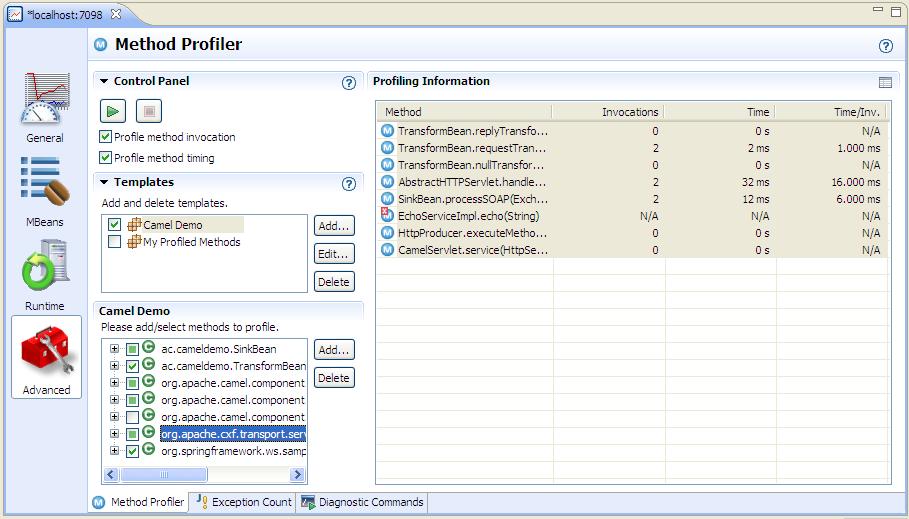
Creating profiling traps in JRMC is fairly simple - go to the 'Advanced' view in the console and click the 'Add...' button under 'select methods to profile. JRMC will ask you for the class name. Assuming that the class is found, it will then allow you to select the methods that you want to profile.

Once the methods are selected, you need to click the 'Start Profiling' button (green triangle) to start capturing data. You should see something like the screenshot below.


Profiling traps can be used to get a more detailed picture of where response time is being sent. They are more complex to set up than JMX and probably incur some measurement overhead. They do have one other big drawback - they are based only on class and method, so you won't be able to separate out the stats for different component instances if you have a number of routes using the same type of component. For all of these reasons, method profiling is probably best restricted to very targeted tests in which you can focus your workload and your profiling traps purely on a small area of interest.

Sunday, 31 October 2010

JRockit Mission Control vs Wily

We’ve been using CA Wily Introscope to monitor one of our production systems for a couple of years. It has been very useful in providing a detailed insight into what is going on with the Java tier including the ability to look back in time and do root cause analysis after a problem has happened.

In particular, we use Wily to monitor the throughput and response time of our ‘front ends’ (servlets, EJBs etc), the ‘back end’ (JDBC calls) as well as keeping an eye on key JMX metrics such as the number of messages in JMS queues and the behaviour of the heap and garbage collector. All in all, it’s a very useful tool that I wouldn’t like to be without.


Another customer that I’ve been working with more recently has suggested either Wily or Oracle JRockit Mission Control (JRMC) as monitoring solutions. I’ve mostly worked with the Sun JVM until now so I didn’t know much about JRMC. I decided to try to figure out how it stacked up against Wily.


This post is about my first impressions of JRMC and its suitability for my own needs. I wouldn’t claim that it’s a comprehensive comparison, so please forgive any errors or omissions.

Pros
  • It’s much easier to get a copy of JRMC than Wily
  • No interceptor setup needed
  • Easier to use for a 'quick look'
  • Probably a better tool for general profiling when you’re not sure where a performance issue might be
  • I like the ‘wait events’ profiling – this seems rather similar to what an Oracle AWR report shows in the database… it remains to be seen whether it proves as useful in the Java tier.
  • Looks like it has some useful features for diagnosing memory leaks, but I’ll reserve judgement until I’ve used them on a real life problem.
  • Can trigger thread/heap dumps etc from the same console
  • Probably better targeted garbage collection visibility for JRockit
Cons
  • Many features only work with the JRockit 1.6 VM
  • It doesn’t seem to support the notion of a centralized permanent data repository
  • Without a data repository, I suspect that any long term trend reporting will be very difficult
  • It doesn’t seem to have the capability to build ‘traffic light’ dashboards and drill down from these to the detailed monitoring data
In summary, I think that both Wily and JRMC are useful tools. JRMC probably scores more highly on more detailed JVM analysis and ease of getting started. Wily does a better job of monitoring a production system and historical trend reporting.

My first choice would be to have both tools available. If I had to choose between them I’d probably stick with Wily for production system monitoring and possibly go for JRMC for monitoring performance tests.

Tuesday, 14 September 2010

Capturing Local Network Traffic on Windows

I often find myself using a network packet sniffer to capture traffic between two network applications. This can be a very powerful technique, both for debugging and for diagnosing performance issues because it shows exactly what is happening on the wire without any need for debugging or logging code in the application and without any room for doubt that the debugging code may itself be causing a problem or not showing the issue.

One serious limitation with this technique is that it is not usually possible to monitor traffic between two applications running on the same Windows machine. I think that the reason is that the Windows loopback adapter doesn’t support packet sniffing. This is rather a pain for me because I quite often want to look at two network applications ‘in captivity’ by running them on my laptop.

Until recently I had just accepted this limitation and found other ways around it such as using another machine to run one of the applications, but this needs extra effort to get the application working on another machine. Sometimes I simply abandoned the packet sniffing route and tried to solve the problem using other techniques.

I recently wanted to monitor and debug some Oracle database link traffic. Installing Oracle on another machine was really going to be overkill so I spent some time thinking about other ways to see the traffic.

I figured out a very simple way around the problem that allows packet sniffing without installing one of the applications on a different machine. The basic principle is to make the network traffic from the client go to a different machine and then have that machine send the traffic back to the target application. This forces the traffic between the two applications ‘onto the wire’ where it can be captured by a packet sniffer (Wireshark in my case). In my setup the extra machine is running Linux, but it should be possible to adapt this technique for other operating systems.

I tried a couple of ways to do this without success before settling on a really simple answer. The first two ways should also work and may be more suitable in some situations. Having found a simpler way, I didn’t pursue them further, but here they are:-
  1. Use iptables port forwarding to identify the relevant network packets and route them back to the intended host.
  2. Use netcat as an application level proxy configured to open a TCP connection to the target host when it receives an inbound connection and forward traffic in both directions.
The technique that I settled on doesn’t require any clever stuff on the Linux machine:-
  1. Use Putty on the Windows machine to open an SSH session onto the Linux machine and log in.
  2. Create a tunnel in Putty, providing a free port number (let’s say we choose 8521) on the Windows machine as the ‘source port’ and the IP address of the Windows machine and the real port number of the application (e.g. 1521) as the ‘destination’
  3. Reconfigure the client application to talk to localhost:8521
  4. Set up the packet sniffer to capture network traffic on the real application port number (1521).
  5. Run the client application and watch the packets arrive.
The screenshot below shows the Putty settings window with the tunnel info being set up. Don't forget to click the 'Add' and then 'Apply' buttons or else it won't work.


This works because Putty listens on port 8521 on the Windows box, sends all traffic received over to the Linux box via its SSH connection and then opens a connection from the Linux box back to port 8521 on the Windows box. The server application and packet sniffer both see a connection coming from the Linux box and send all responses back the same way, even though the client is really on the Windows box.

Step 3 is of course very dependant on the client application. In the case of a database link the ‘client’ is actually an Oracle database instance. I had to set up an extra aliased entry in tnsnames.ora and create a database link to talk to the aliased TNS name instead of going direct to the real target instance.

Friday, 30 April 2010

Memory Leak Case Studies Part 3

The third and final installment (probably) in the series on memory leak case studies describing real memory leaks and similar Java heap stress conditions that I’ve seen myself and how they were tracked down and fixed.

This particular issue took a long time to resolve because it wasn't in code that we controlled and tracking down information about the problem proved very difficult.

weblogic.jms.dd.DDMember

After clustering our WebLogic 9.2 servers we found that the managed servers would run into major heap stress and sometimes go offline on some of our test environments. Unfortunately the problem was not easily reproducible and didn't seem to happen on environments that we could easily mess with.

A heap histogram from jmap looked like...

255076744 2969890 char[]
71728608 2988692 java.lang.String
34196104 287745 * ConstMethodKlass
30874880 385936 weblogic.jms.dd.DDMember
20721808 287745 * MethodKlass
18528600 772025 weblogic.jms.common.JMSID
18527736 771989 weblogic.messaging.dispatcher.DispatcherId
15454080 386352 weblogic.cluster.BasicServiceOffer
14538712 24883 * ConstantPoolKlass
12604000 259169 * SymbolKlass
10601304 24883 * InstanceKlassKlass
9763528 29806 byte[]
9262056 385919 weblogic.jms.dd.DDMemberStatusSharer
7797008 18852 * ConstantPoolCacheKlass
6628720 118370 org.codehaus.groovy.runtime.metaclass.MetaMethodIndex$Entry
6175856 385991 weblogic.jms.common.JMSServerId

We also got some heap dumps, but it was pretty obvious from the outset that the memory leak related to WebLogic internal classes. We checked and ruled out the obvious things that were under our control (e.g. too many messages building up in JMS queues). We also googled for the problem and searched Oracle Metalink but didn't turn up any useful advice. The only option left was to raise a case with Oracle, which is what we did.

Oracle responded to the case with the advice to increase the heap size to 2Gb on all servers. We did this and our test environments became more stable. the problem did not recur in test so eventually the clustering changes made it into production.

I'm sure that you can guess where this story is going ...

After clustering went live we found that the managed servers would stay up for roughly 24 hours before running into problems and needing to be restarted. The initial symptoms that were noticed were BEA-000115 messages (which say that a multicast packet was lost) and BEA-000511 messages (which say unsolicited reply), along with high CPU utilisation.

Naturally a new Oracle case was opened. Initially it was thought that the problem was being caused by a poor choice of multicast addresses. Another week went by while the system was reconfigured with what seemed to be better multicast addresses, but still the problem remained.

I did some analysis of the logs using Splunk (a great tool BTW, but that's another story) and found that the messages seemed to appear in bursts starting an hour or two before the CPU utilisation became really high. Here is a Splunk graph showing the occurrences of one of the message types.


I'd also asked for jstat data which confirmed that the servers were filling up their heaps. I also found that the WebLogic logs contained some BEA-310002 messages that shed some light on the behaviour of the problem over a longer period. I used splunk to produce a graph from these:-


This graph seemed to indicate that the problem was related to the uptime of the servers rather than the amount of work they were doing (the behaviour was the same on a Sunday as on a working day). This prompted an idea for improving the stability of our system - avoid restarting all of the servers at the same time and then there would be a good chance that they wouldn't all fail at the same time. Unfortunately the change control procedures for the production system pretty much ruled this out, so we were stuck with restarting the servers each time they ran into trouble.

Finally Oracle support came back to us with the advice that this was a known bug in WebLogic for which a patch was available - 'BUG 8160383 - [CR368242]'. We applied this fix, tested it and put it into production and found that the problem was solved.

So I then wondered why we hadn't found the cause sooner. The Oracle support people said that the description of the patch said that it fixes "leaking objects weblogic.jms.dd.DDMember". I went back into Metalink and looked up the information relating to the bug and the patch and found that it contained mostly blank text and no mention at all of 'DDMember' which is probably why I couldn't find it. I wonder whether some of the information was perhaps lost in the transition from WebLogic's bug database into Metalink. Clearly the Oracle support people have another source of information available to them.

Monday, 8 February 2010

Memory Leak Case Studies Part 2

The second in the series of case studies describing real memory leaks and similar Java heap stress conditions that I’ve seen myself and how they were tracked down and fixed.

Oracle OC4J oracle.dms.spy.Metric

An application which I’d seen running quite happily on other app servers was giving problems when run on Oracle App Server (OC4J). It would run for a few days and then performance would gradually degrade. A quick check using JVM startup switches to log garbage collection activity showed that increasing GC overhead was the most likely culprit.

A heap histogram showed several oracle.dms classes near to the top of the list. DMS is an instrumentation technology from Oracle that allows various aspects of the app server and application operation to be monitored.

Size Count Class description
-------------------------------------------------------
115136200 813639 char[]
19947648 831152 java.lang.String
19887720 497193 oracle.dms.spy.Metric
13815944 244485 java.lang.Object[]
9190608 67578 oracle.dms.instrument.PhaseEvent
8412640 50732 * MethodKlass
5134584 91689 oracle.dms.spy.Metric[]
3735840 155660 java.util.ArrayList
3635952 15771 byte[]
3601048 79404 * SymbolKlass
3484080 43551 oracle.dms.instrument.Noun
2890560 24088 oracle.dms.instrument.State
2880624 120026 java.util.Hashtable$Entry
2656648 4659 * ConstantPoolKlass
2108424 87851 java.util.Vector
1925072 26967 java.util.HashMap$Entry[]
1643280 4659 * InstanceKlassKlass


We became convinced that this was an app server rather than an application issue but it took a few days for us to track down the correct fix. Googling turned up some ways to switch off the reporting of DMS metrics which we tried, but these did not solve the problem because the metrics were still being captured. Eventually I found the fix rather by chance – there is an option which can be set using a JVM startup switch to disable the collection of DMS metrics for JMS. The switch is ‘-Doc4j.jms.noDms=true’. We tried this and found that the problem was solved.

Annoyingly we then found that this was a known issue with OC4J documented in Metalink bug id 5462430 and fixed in OAS version 10.1.2.99. I say annoyingly because I’d searched Metalink several days earlier and had seen this bug but had misread the OC4J version number and decided that it wasn’t the same as our problem.

AxisHttpSession

A GUI application using a complex Java servlet had been working just fine in production for over 12 months. Recently it had started to suffer from Java heap stress, causing it to fail if the server component was left running for several weeks.

Our immediate workaround was to schedule a restart of the server component each weekend. We also collected a heap dump file before each restart.

Analysis of the heap dump using Eclipse MAT didn’t immediately show an obvious culprit. This was because the server was now being restarted every week, so the problem was not building up to the point where it would be really obvious in the heap dump.

Once this point was understood, further analysis showed that the server appeared to be leaking Apache Axis objects. Classes org.apache.axis.transport.http.AxisHttpSession and org.apache.axis.handlers.soap.SOAPService were both showing retaining big chunks of heap space, although appearing at positions 18 and 19 in the MAT histogram.


A search of the Axis bug database highlighted a similar looking problem - http://issues.apache.org/jira/browse/AXIS-2314 . Checking our Axis JAR manifest revealed that we (or rather a bought in product) were using Axis 1.3 which was too old to have the fix for this bug. We have asked the product vendor to provide a patch to use a later version of Axis.

This still left the question of why the problem had started happening after the system had been stable for so long. The reason was traced to a recent implementation of SiteMinder single sign on. This change had required that the Java applet configuration be changed so that instead of using Java RMI to communicate with the server it started using SOAP and therefore Apache Axis.

Monday, 30 November 2009

Memory Leak Case Studies Part 1

I’ve been planning to post a little more on memory leak hunting for some time. For some reason (not from my own choice!) it has been a recurring theme of my professional life for the past year or so. What I had in mind was a few brief case studies of real memory leaks and similar Java heap stress conditions that I’ve seen myself and how they were tracked down and fixed. I hope these might help someone faced with similar issues so here goes...

I won’t describe the symptoms that started the investigation for each issue separately – they are usually the same – high CPU usage caused by too much garbage collection activity, sometimes leading up to java.lang.OutOfMemoryError.

If you need any more detail on the tools and techniques used, please see my earlier postings.

The case studies are roughly in chronological order. The first two are below. The rest will be in later postings. I've tried to stick to what actually happened, including any theories that turned out to be wrong. Where I would do things differently with the benefit of hindsight or better tools, I've tried to point this out too.

HSQLDB MemoryNode

A recently developed component was falling over during performance testing. In this case the heap histogram was pretty clear:-

Object Histogram:

Size Count Class description
-------------------------------------------------------
853118944 644449 char[]
44002832 361196 * ConstMethodKlass
26010200 361196 * MethodKlass
18582256 31995 * ConstantPoolKlass
15542520 647605 java.lang.String
14955048 395252 java.lang.Object[]
13799984 31995 * InstanceKlassKlass
13799360 431230 org.hsqldb.MemoryNode
13701992 283429 * SymbolKlass
10192768 24725 * ConstantPoolCacheKlass
8900360 37575 byte[]
7836032 85528 java.util.HashMap$Entry[]
6703232 65651 int[]
6520920 116445 org.codehaus.groovy.runtime.metaclass.MetaMethodIndex$Entry

The key here is org.hsqldb.MemoryNode. Our applications normally use Oracle but one part of the new component made use of an HSQLDB database to keep a record of the transactions that had been received. This caused no problems in development or test, but caused the application to fall over during performance testing because far more log records were being created, all of which were kept in memory by HSQLDB. To make matters worse, HSQLDB had been configured to save the database to a disk file and reload it on startup, so the problem could also build up across several restarts of the application.

In this case we were able to solve the problem by changing the application configuration to disable the logging feature and clearing out all of the accumulated HSQLDB rows.

Oracle T4CVarcharAccessor

A complex EJB based application was failing during performance test at high volumes. The heap histogram showed several Oracle JDBC driver classes high up in the list.

1,171,400,136 265,576 char[]
138,464,419 31,011 byte[]
13,216,708 255,522 int[]
8,717,148 47,897 oracle/jdbc/driver/T4CVarcharAccessor
6,226,876 259,451 java/lang/String
4,418,140 27,273 oracle/jdbc/driver/T4CNumberAccessor
4,402,466 29,138 short[]
2,548,884 17,748 [Ljava/lang/Object;
2,502,556 104,271 java/util/HashMap$Entry
2,075,776 2,221 oracle/jdbc/driver/T4CPreparedStatement
1,982,236 23,840 [Ljava/util/HashMap$Entry;

This problem was more difficult to track down because our code wasn’t creating or running the JDBC statements – this was all happening in an EJB server that we were calling. This was part of a commercial product that we we use and we didn't have the source code.

Looking at some heap dumps using the IBM HeapAnalyzer appeared to show that the offending objects were being held in memory by the WebLogic JDBC statement cache. While this could have created symptoms like a small scale memory leak, this explanation didn’t quite make sense because we were seeing far more leaking statements than the cache size. This is a good example of a tool presenting a summarised view of a complex world which can sometimes lead us astray. Eventually we stopped blaming WebLogic and found a different way to look for clues...

The breakthrough came with the use of ‘strings’ and ‘sort’ to analyse the heap dumps. This allowed us to pinpoint a piece of SQL that was repeatedly appearing on the heap and not being garbage collected. The problem turned out to be a simple program logic bug in the EJB server – it worked just fine in the majority of cases when it generated and ran just one JDBC statement for each client call. On some calls, however, it would generate and run two statements. When this happened it would only call close() on the most recent one, causing the JDBC driver to leak the resources belonging to the earlier statements. We raised a bug with the product vendor and after several calls to explain the issue and our diagnosis, they shipped us a fix.

Finding the root cause for this issue took several weeks. It would have been a lot easier with Eclipse MAT.

Thursday, 1 October 2009

A Better Heap Analysis Tool

Sometimes I wonder how a really useful tool can be out there for over a year before I find it. I can't answer that question. I can tell my readers a little about it...

I recently found the Eclipse Memory Analyzer project (or 'MAT'). This is a tool which combines most of the best features of IBM's HeapAnalyzer, features from SAP and JHat (for example, OQL) plus a bunch of other useful things into a single tool. It also indexes your heap dump and saves the indexes so that when you reopen the same dump later it loads very quickly.


MAT uses the notion of a 'Dominator' which I suspect comes from the SAP contributions - this is an object which if removed would free up a bunch of other objects. I think this is slightly different from the IBM HeapAnalyzer's notion of 'owner'. Having used the IBM tool, it takes a little bit of effort to get used to MAT's Dominator concept, but once you do this it makes perfect sense. So far I've found that I miss the freedom with which you can navigate up and down the owner/parent/child relationships in HeapAnalyzer - MAT makes you use a few more clicks to do this. On the whole though, it is a much better tool than its predecessors.

The thing I really like about MAT is its ability to do String frequency analysis (plus other useful stuff like finding sparsely populated collections) and to be able to focus this analysis onto children of a particular class or a particular part of the heap (or both!) - no need for separate analysis using 'strings' any more.

MAT is available either as an Eclipse plugin or a standalone tool. My own preference is for the standalone tool version - I have way too many plugins in my Eclipse workbench already and for heap analysis I prefer to have lean and mean tools so that memory is kept free for doing the real work.

MAT comes with excellent tutorials and also a blog containing good ideas about how to use it to track down those pesky memory leaks.

I think this will be my tool of choice from now on.

Friday, 18 September 2009

How to find Java Memory Leaks - Part 3

In the previous post I looked at how to get a heap histogram and how to use it to help to understand the cause of a memory leak. While a heap histogram will tell you what is leaking, it doesn't provide many clues about why. For the (probably) final installment, I will look at how to perform a more in-depth analysis using a heap dump. This is most definitely in the 'advanced' category of debugging.

A heap dump is a diagnostic file containing information about the entire contents of the heap. As a result, it can be a pretty big file - very roughly it will be about the same size as the space used on the heap. Before going any further you need to make sure that you have enough disk space to allow the heap dump to be written. If you are going to analyse it somewhere else (which is probably a good idea) then you need to check that you will be able to transfer such a big file.

Next, my usual warning - this level of debugging is very intrusive and will hang the JVM for several seconds so you should reproduce your issue on a test environment and take heap dumps there.

There are several ways to get a heap dump... and the options depend on which JVM version you have. Because I often need to work with 1.4 and 1.5, I usually use a JVM startup switch -XX:+HeapDumpOnCtrlBreak . Depending on your JVM version, you can also trigger a heap dump using jmap (e.g. jmap -heap:format=b), jconsole or via JMX. I've seen some very long pauses (several minutes) when using jmap like this, so be warned. There is another JVM startup switch -XX:-HeapDumpOnOutOfMemoryError which should be fairly self-explanatory. I've never used this myself because I usually want to control when heap dumps are taken and am always worried that triggering a heap dump when the JVM is already in trouble might make things even worse.

So having got your heap dump, how do you analyse it? The most frequently quoted tool is jhat from Sun. This will read your heap dump file and start a web server. You can then connect a browser to it to analyse your heap dump. I'm not going to say much more about jhat because I have not used it very often.

Naturally there are commercial tools but I wont cover them here. My own (free) tool of choice is called HeapAnalyzer from IBM. This is a Java Swing application which provides most of the capabilities available in jhat (with the notable exception of OQL) and also provides some useful power tools for quickly homing in on a memory leak - basically this tool has the feel of having been written by people who have actually spent some serious time tracking down memory leaks.

Whichever tool you choose, you will probably need to make sure that the tool itself has enough heap space by using the -Xmx option with a suitably high value when starting the tool.

Here is a screenshot of HeapAnalyzer just after opening a heap dump.


If you're lucky then the the first view that HeapAnalyzer shows will highlight your leak in blue. Before we look at this in more detail, let's look at some other views that will help us to understand what HeapAnalyzer is telling us.

View/Root List - this shows all of the 'top level' objects that will stay on the heap without being referred to by another object. This view (and the others) is sorted by 'total size' which needs a little explanation. This number is not the same as the total size of the object on the heap. HeapAnalyzer tries to do something more useful than that...

HeapAnalyzer organizes all objects as 'parent' and 'child' based on their references (the target of a reference is called the 'child'). The total size is the sum of the sizes of the object itself and all of the children that it owns. This is useful and often works in a way that seems natural, but since the heap is just a bunch of objects that refer to each other, it doesnt always present things in the way that you might expect, especially in the presence of circular reference chains (which happens quite a lot). It also tracks which objects have already been visited when working this out, so if an object has more than one 'parent', its size will only be counted under one of them, which HeapAnalyzer nominates as the 'owner'. HeapAnalyzer has to make a fairly arbitrary choice of which parent to count as the owner which may or may not be what you would consider to be 'correct'. Keep this final point in mind when using HeapAnalyzer.

View/Type List - this is very similar to the info provided by the heap histogram which I described in part 2. HeapAnalyzer also adds its 'total size' column. This is a view that I use a lot - once I find a class that is of interest, I can right click on it and select 'Find Same Type' which takes me to the...

View/Object List - this shows a list of object instances, again ordered by 'total size'. Once you have found an object which is of interest, you can right click and select 'Find Object in Tree View' to jump to the...

View/Tree View - this is probably the most useful view of all. It allows you to see an object in the context of its parents (or to be precise, owner) and children. Children are ordered by total size, so the ones that HeapAnalyzer thinks are using the most space show up at the top of the list of children. The tree view also allows you to view (in the right hand pane) the values of each attribute of the object.

Be careful with the tree view - keep in mind that it is presenting a simple view of something which is actually more complex than it appears. Each object can have multiple parents but the tree view can only show one of them (the one HA picked as the 'owner'). You can see the other parents by right clicking the object and selecting 'List Parents'.

And finally the tools - by right clicking an object in the tree view we have the option to 'go to the largest drop in subtrees' - i.e. find the point in the tree of children that is accounting for the most heap space. At the top of the view we have the 'Subpoena Leak Suspects' tool which will jump to the objects that HA has decided are the most likely candidates as leaking objects. This brings us back to the initial view that I described above because this is where HA will go to when the heap dump is first opened.

HeapAnalyzer also comes with a reasonably comprehensive help page which describes most of the key features.

So what can HA tell us? Unfortunately it still can't tell us why we have a memory leak. What it can do is allow us to home in on the leaking objects and understand which other objects are holding references to them and keeping them in the heap. Working out why we have a leak is something that we have to use our own brains to do, for example by figuring out where the code should be resetting a reference and making the objects eligible for garbage collection. This may be both difficult and time consuming. You will also need to decide which 'leaks' are actually object caches which are working as intended and eliminate these from your list of suspects... maybe. Sometimes object caches may be incorrectly tuned or misbehaving so they may really be the cause of the leak.

Finally I'd like to mention one more (and rather simpler) technique. As I observed earlier, string data is usually the thing which takes up most heap space. Looking at the content of those strings may provide a better clue about your memory leak. So use the Unix 'strings' command on the heap dump, followed by 'sort'. This will give you a big text file which you can analyze to find out which are the most commonly occurring strings. I've used this in the past to track down a JDBC related leak by finding the most common SQL statements on the heap.

There are a few pitfalls with the 'strings' approach:-
  • Double byte character sets - try using different flavours of the '-e' switch to do another run of 'strings' to pick up double byte strings.
  • Multi-line strings - what may be a single string object in Java will become multiple lines in your text file. Sorting the text file will then redistribute these lines so that parts of the same Java string are widely separated.
  • Relating the content to anything in HeapAnalyzer - I haven't found a good way to do this. It would be nice if HA had a string content search feature.
So that's it - you now have a kit bag of tools and techniques for tracking down a Java memory leak. It probably wont be easy, even with these tools so I wish you the best of luck.

Tuesday, 11 August 2009

How to find Java Memory Leaks - Part 2

In the previous post I looked at how to monitor your application in test or production to observe its heap behaviour and understand whether or not you have a memory leak. In this post I will start to look at the next step - how to gather data to help to trace the root cause of your leak.

In some simple cases it is possible to use inspection of the source code, a debugger or trace statements to figure out what is going wrong by spotting where the developer has made a mistake. If this works for you, then that's great. I want to focus on the more complex situations where you are dealing with lots of code and lots of heap objects that may not be yours and you can't just go straight to a piece of Java and see what the problem is.

To understand a memory leak we usually need to use tools which are very different from those used to diagnose other issues. For most issues we want to understand the dynamic behaviour of our code - the steps that it performs, which paths it takes, how long it takes, where exceptions are thrown and so on. For memory leaks we need to start with something completely different - namely one or more snapshots of the heap at points in time which can give an insight into the way it is being used up. Only once we have this picture can we start to work back to the code to understand why the heap is being used up.

Before going any further, a small warning - most of the techniques from here on are not well suited to production environments. They can hang the JVM for anything between a few seconds and a few minutes and write large files to disk. You really need to reproduce your issue in a test environment and use these tools there. In a crisis, you may be allowed to use them in production if your app is already under severe heap stress and is about to be killed or restarted anyway.

The simplest type of snapshot is a heap 'histogram'. This gives you a quick summary (by class) of which objects are consuming the most space in the heap including how many bytes they are using and how many instances are in the heap.

There are a couple of ways to get a histogram. The simplest is jmap - a tool included in some JDK distributions from Java 1.5 onwards. Alternatively, you can get a histogram using a JVM startup argument -XX:-PrintClassHistogram and sending your app a Ctrl-Break (Windows) or kill -3 (Unix) signal. This JVM option is also settable via JMX if your JVM is recent enough.

Here is an example (from a test app that deliberately leaks memory)...

andy@belstone:~> jmap -histo 2937
Attaching to process ID 2937, please wait...
Debugger attached successfully.
Client compiler detected.
JVM version is 1.5.0_09-b03
Iterating over heap. This may take a while...
Object Histogram:

Size Count Class description
-------------------------------------------------------
65419568 319406 char[]
7472856 311369 java.lang.String
1966080 61440 MemStress
596000 205 java.lang.Object[]
64160 4010 java.lang.Long
34248 13 byte[]
32112 2007 java.lang.StringBuffer
10336 34 * ObjArrayKlassKlass
4512 47 java.lang.Class
4360 29 int[]
(snip)
8 1 java.lang.reflect.ReflectAccess
8 1 java.util.Collections$ReverseComparator
8 1 java.util.jar.JavaUtilJarAccessImpl
8 1 java.lang.System$2
Heap traversal took 42.243 seconds.
andy@belstone:~>

There are a few things to note here:-
  • Using this tool will hang the JVM until it has finished the histogram dump - in this case for 42 seconds. Don't try this if you can't afford to hang your JVM.
  • The objects highest in the list are java Strings and their associated character arrays. This is very common. You may also see other built in types (e.g. collections) near the top of the list.
  • What you should usually look for are the classes which appear highest in the list over which you actually have some direct control. This should give you the best clue about what types of object are involved in your memory leak.
In the (rather contrived) example above, the class 'MemStress' looks like it could be the real consumer of the heap space and indeed it is. Even though we've found it, most of the space it is using is being used indirectly - in this case by the Strings it uses to hold its instance variables. We were fortunate that MemStress objects on their own are big enough to push the class high enough up the list to be noticed. In some cases you may not be so lucky - instances of the main culprit may be quite small and it may therefore be hiding lower down the list. Try importing the list into a spreadsheet and sorting by instance count to see if that offers any additional clues.

It's usually best to have several heap histograms from the same run of your app at different points in time. Comparing these will give you a much better picture of how your memory leak is building up over time. Try to arrange to trigger them so that your app is in a similar state (usually idle) for each dump - then you will be comparing 'like for like'.

A heap histogram may be all you need to figure out what's going wrong, in which case you can don't need to worry about the next step.

What a histogram can't tell you is why each object is staying in the heap. This happens because at least one other object is still holding a reference to it. A full heap dump has the information needed to trace these references and also look in detail at the values of individual attributes in every object on the heap. It's also a big step up in size and complexity from a heap histogram. I'll look at how to take and analyse a full heap dump in the next installment.

Monday, 10 August 2009

How to find Java Memory Leaks - Part 1

Java heap consumption and memory leak diagnosis is something that (judging by other posts around the net) is often misunderstood - I've lost count of the number of searches that have turned up advice to simply increase the heap size and hope the problem goes away.

Let's address this one question straight away - if you really have a memory leak, increasing the heap size will at best only delay the appearance of an OutOfMemoryError. If your issue is just a temporary spell of high demand for heap memory then a bigger heap may help. If you take it too far you may see much worse performance because of swapping or even crash your JVM.

So what should you do? In essence, I would recommend three steps:-

1. Monitor your application in test and/or production to get an understanding of its heap behavior
2. If you really do have a problem, you need to gather data to help to track down the cause.
3. Finally having got the data, you need to figure out what it means - what is causing your problem and how to fix it.

Sadly these steps are not always easy to do - particularly step 3.

I'll be talking about the Sun JVM from here on, although many of the same principles and sometimes tools apply to other JVM implementations.

First let's look at monitoring...

To get a clear picture, you really need to look in detail at the heap stats from your JVM, but I quite often find that these are not available when I'm first asked to look at a problem, so what can we tell without this?

Clearly if you see this in your application logs then there is a problem...

java.lang.OutOfMemoryError: Java heap space

The usual response if you have real users is to restart the application straight away. You should then continue to monitor because you're probably going to need to know more before you get to the end of the diagnosis.

I often start by looking at CPU consumption using top, vmstat or whatever tools are available. What I'm looking for is periods where the Java app is using close to 100% of a single CPU. While it's not conclusive proof (being stuck in a loop could cause the same effect), this often means that the app is spending a lot of time doing full garbage collections - the most commonly used garbage collectors are single threaded and therefore tend to use 100% of a CPU.

Monitoring memory usage from the operating system is not very informative - Java will typically grow the heap to the maximum size long before there is a problem. If you have oversized your heap compared to physical memory you will probably see heavy swapping activity, but that's a different issue.

Some applications and app servers will make calls to java.lang.Runtime.freeMemory(). While this may be better than nothing, it's fairly uninformative and provides very little info about which generations have free space, how much time is being spent garbage collecting and so on.

The JVM can provide much more detailed info about what is going on. The JVM itself provides two main ways to get hold of this:-

1. JVM Startup arguments to write information to log files. Here are some suggestions, but check the docs for your specific JVM version (or try here) because the available options vary:-

-XX:+PrintGCDetails
-XX:+PrintGCTimeStamps
-XX:+PrintGCApplicationConcurrentTime
-XX:+PrintGCApplicationStoppedTime
-XX:+PrintTenuringDistribution

You may also want to add -Xloggc:myapp-gc.log to send your GC info to a dedicated log file

You can then analyse the log files to produce a graph using a tool such as gcviewer. This approach gives you detailed information about every GC run but be careful to check that you have enough disk space - these options can produce a lot of data. Typically you will also need to restart your app to enable these options, although they are also controllable via JMX for more recent JVM versions.

2. JDK tools - jvmstat in Java 1.4 and jstat in Java 1.5 and higher. These are tools that you run from the command line. They connect to your Java app via one of the JVM debugging APIs and will then report on heap and GC stats according to the options you specify. I usually use jstat -gcutil -t 60s which produces a line of output once per minute showing the percentage utilisation of each heap space, plus the number of young and full GC events and the cumulative GC times. You can then open the resulting text file in Excel for analysis. Note that jstat is capable of monitoring Java 1.4 VMs, which is handy if you have multiple versions. Alternatively (if your environment allows) you can try visualgc for an instant GUI view but I prefer using jstat to collect logs for offline analysis.

There are other commercial tools (e.g. Wily Introscope) which can provide the same data as the JDK tools. They may provide better visualisation, historical reporting and perhaps proactive alerting
but I don't intend to cover them in detail here because most readers probably don't have them.

So what should you look for to know whether you have a problem?
  • OutOfMemoryErrors in your application logs - clearly you have a problem if you are getting these.
  • A persistent upwards trend in the Old Generation usage after each full garbage collection.
  • Heavy GC activity. What 'heavy' means is rather dependant on your application. A rule of thumb for a non-interactive app might be 15 seconds during each minute - which means that your app only has 75% of its time left to do useful work. You might choose a lower figure or look at the duration of individual full GC runs, especially if your app has real users waiting for it.
Finally, some pictures. Here is a graph showing jstat data from an app on WebLogic 9.2 with a heap memory leak - you can see that the Old Generation usage is climbing, even after garbage collection.

Here is another graph from the same app. The original leak has been fixed and there is now no evidence of a cumulative memory leak, but there are some intermittent spikes in heap usage. If the spike is severe enough it can still cause an error. Tracking this problem down will need some knowledge about what unusual types of system activity are occurring at the time of the spike.


Here is a graph drawn by gcviewer after using JVM startup arguments to produce a log file. The graph is quite 'busy' and includes a lot of extra info - for example this app's arguments allow the heap to grow as more is needed. The graph shows the growth in overall heap size as well as the growth in consumption. This info is available using jstat too, but if you really need it all then using gcviewer will probably be more convenient.

In the next post I'll look at how to gather data to help trace the cause of your memory leak.